



How to Test GPS / Location Features on Real Devices
Location-based features are painful to test: you can't physically travel to every city your app cares about, and simulator location support is limited and unrealistic. The fix is to simulate GPS on a real device and check that your maps, geofences, and location flows behave everywhere.
What you'll want to test
- Maps and store locators — does the right content show for a given city?
- Geofencing — do entry/exit triggers fire at the right boundaries?
- Region logic — pricing, language, availability that changes by location.
- Edge cases — location off, permission denied, coordinates on a border.
How to do it with RobotActions
- Sign in at robotactions.com and open a real iOS or Android device.
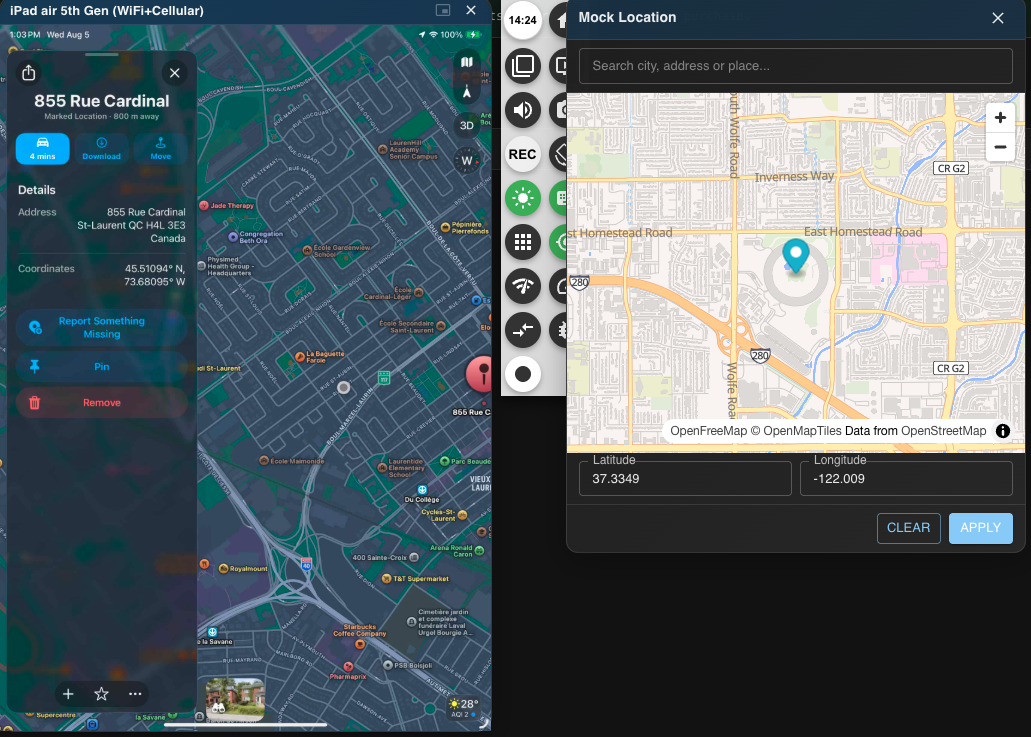
- Set the device's GPS to any coordinates or place.
- Open your app and verify the location-dependent behavior updates.
- Move the location again to test transitions and geofence triggers — no physical travel required.
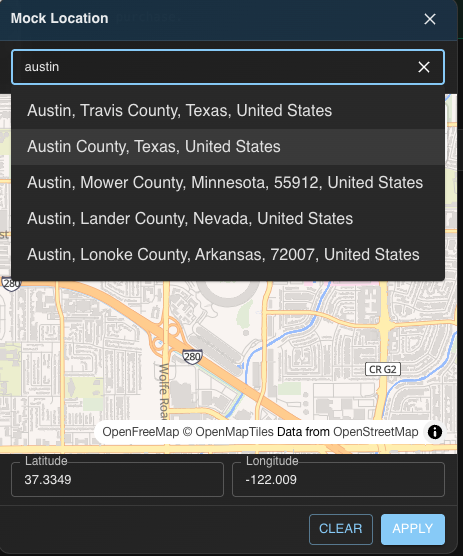
Because it's a real device, you're testing the actual OS location stack and the real app, not an approximation.
Let an AI agent do it
The same capability is an MCP tool, so you can ask an agent:
"Set the device to Tokyo, open the app, and confirm the store locator shows Tokyo stores; then move it to Berlin and check it updates."
Try it
Sign in with Google or GitHub and test location features free →
Ready to test on real devices?
Sign in with Google or GitHub and get real iOS and Android devices in your browser — free to try.