


Connect Claude or Cursor to Real iOS/Android Devices with MCP
If you use Claude Desktop or Cursor, you can give them something most agents can't reach: a real phone. This is the short version of wiring either client to real iOS and Android devices over MCP, so your agent can tap, inspect, capture network traffic, and run tests on an actual device. (For the full walkthrough, see How to give an AI agent full control of a real device over MCP.)
Step 1 — Get an API token
- Sign up at robotactions.com (Google or GitHub, one click).
- Profile avatar → API Tokens → New token → copy it (shown once).
Step 2 — Connect Claude Desktop
Add RobotActions as a remote MCP connector pointing at:
https://mcp.robotactions.com/mcp
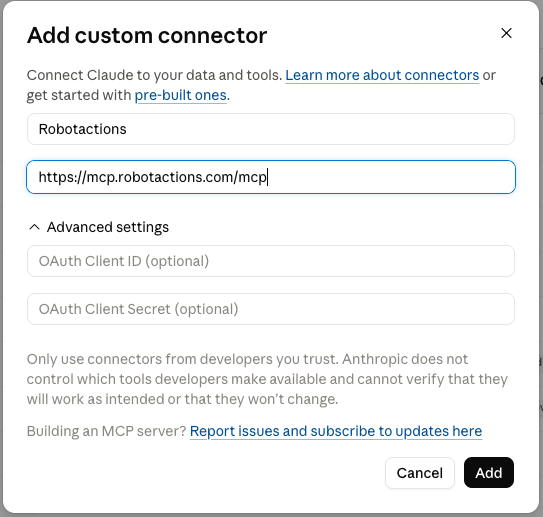
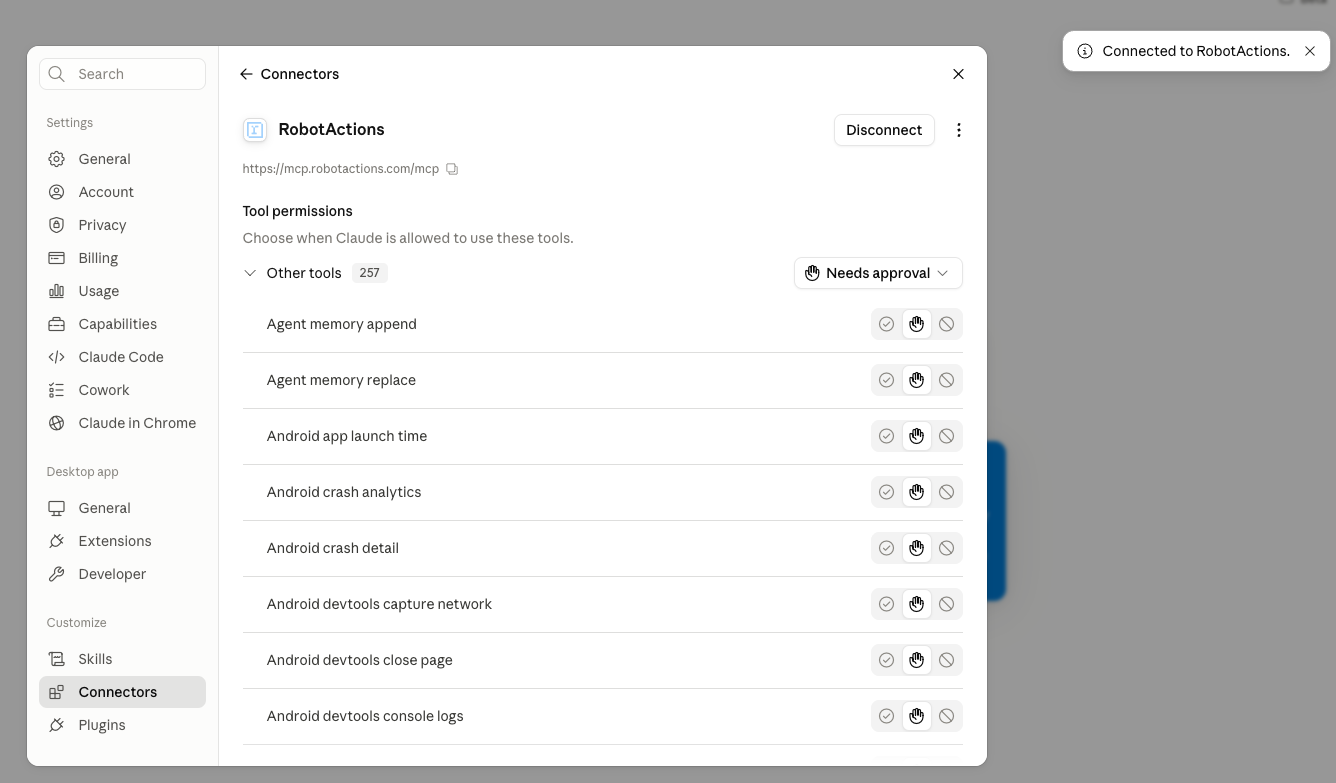
Authenticate with your token (Authorization: Bearer <token>) when prompted. Reload Claude
Desktop and the device tools appear.
Step 3 — Connect Cursor
Add it to Cursor's MCP configuration — endpoint https://mcp.robotactions.com/mcp with your
token as the Authorization: Bearer header. Or run the connector:
npx @robotactions/mcp initReload Cursor; the RobotActions tools show up alongside your others.
Step 4 — Try it
Ask your agent:
"List devices, open an Android one, take a screenshot, then open Settings and toggle Wi-Fi."
It drives a real device — real taps, not a simulated overlay. From there you can have it inspect the network, mock a response, spoof GPS, or explore a flow and generate a test script.
Why bother?
Because it turns "test this on a real device" into a single instruction your existing agent can run — no cables, no simulators, no local device lab.
Try it free — Google/GitHub sign-in, live demo →
Client configuration formats evolve; if a step looks different, check the current docs on robotactions.com.
Ready to test on real devices?
Sign in with Google or GitHub and get real iOS and Android devices in your browser — free to try.